Quick Instructions – Save Recurring Prompts Once
Same adjustments without constant repetition. Quick instructions solve the problem of repeated input through centralized storage of reusable prompts.
Same Adjustments, Without Constant Repetition
When editing images, it often happens
that the same or very similar adjustments need to be made over and over again.
Without quick instructions, this means:
- Writing prompts or parts of them anew each time
- Unnecessary repetition
- Time loss with larger image volumes
Quick instructions solve exactly this problem by storing recurring instructions once centrally and making them reusable anytime.
What Problem Do Quick Instructions Solve?
Many users work with:
- Favorite prompts
- Proven standard instructions
- Recurring style or optimization specifications
These previously had to be entered or adjusted again for each new image.
👉 Quick instructions turn them into reusable building blocks.
The Main Benefit
Fast, time-saving, and universally applicable.
Quick instructions:
- Save time in image editing
- Reduce manual repetition
- Ensure consistent results
They are universally applicable – regardless of image type.
Typical Use Cases
Quick instructions can be stored for almost all operations, e.g.:
- Interiors
(e.g., style, atmosphere, lighting) - Exteriors
(e.g., garden, facade, surroundings) - Floor plans
(e.g., representation, clarity, labeling)
Especially with larger projects or series, they ensure consistent quality with minimal effort.
How Quick Instructions Work
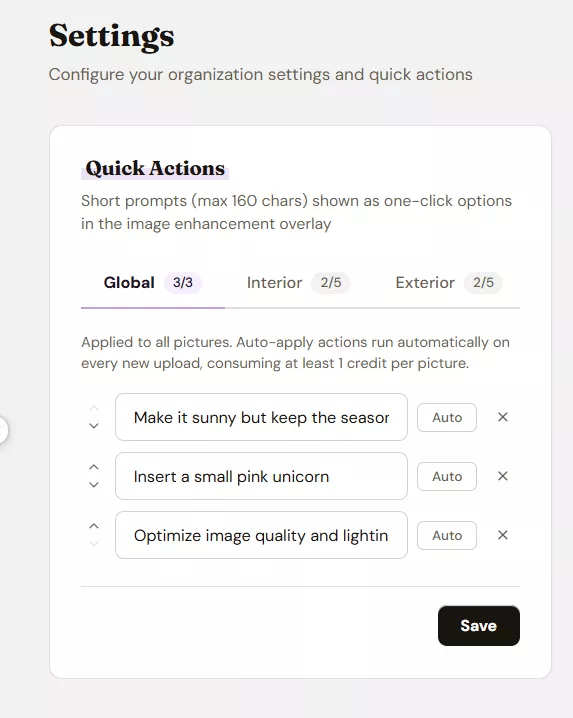
- Store quick instructions in Settings
- Open image in the Editor
- Select desired quick instruction
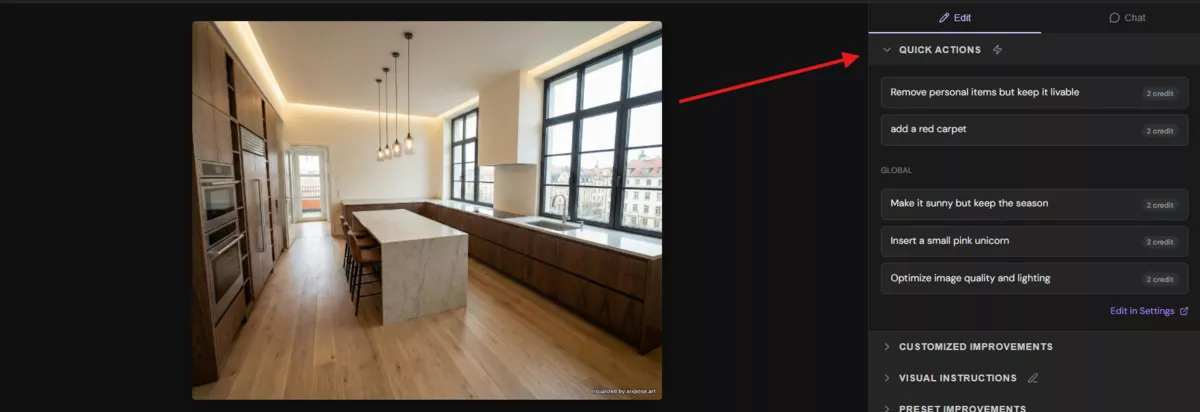
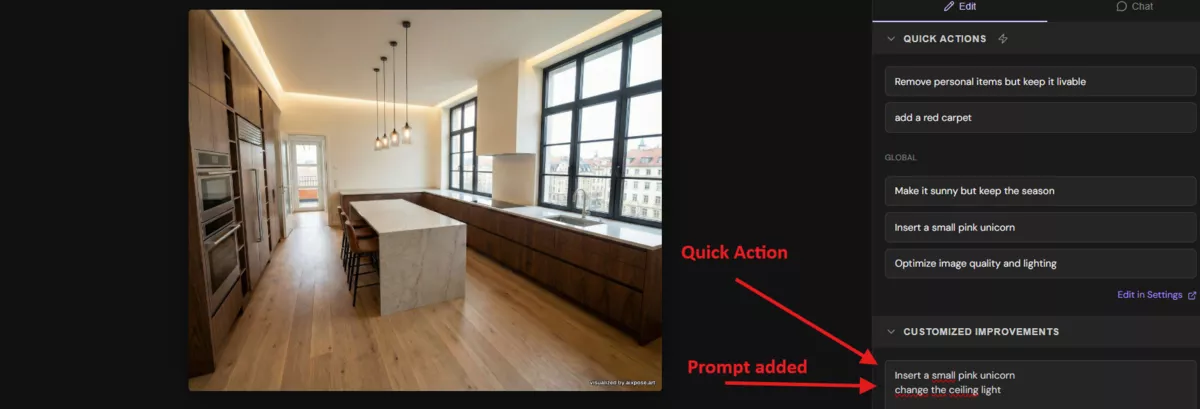
- Optionally adjust instruction or use directly
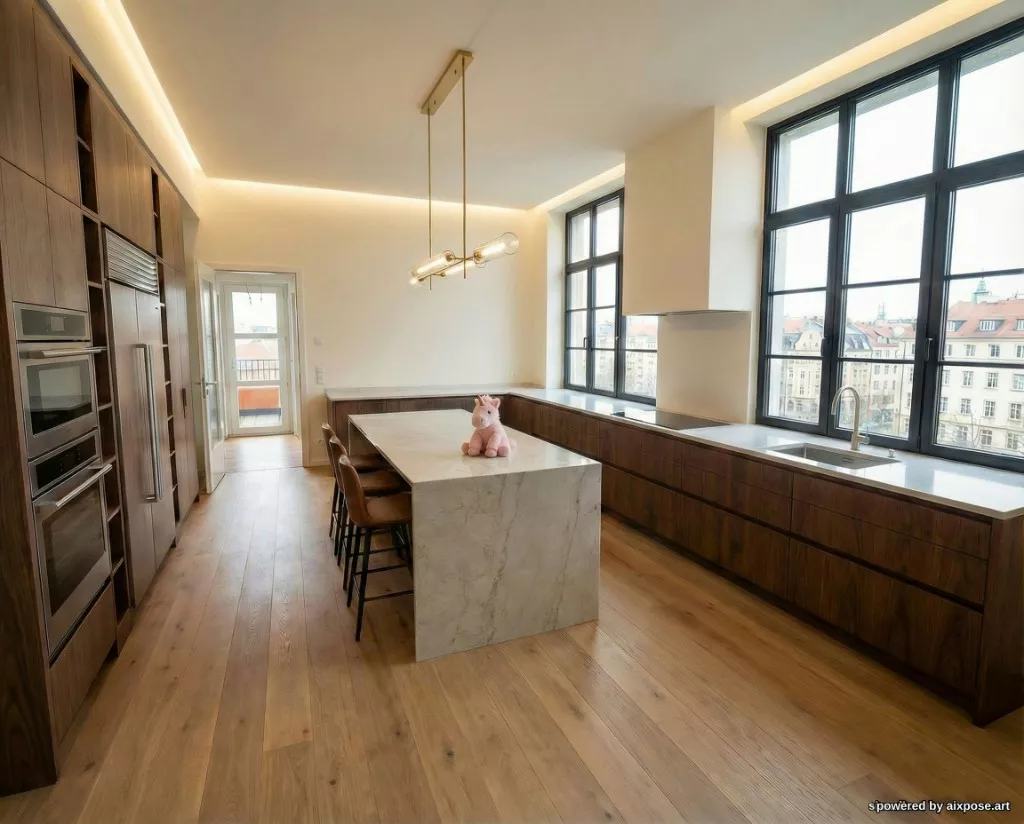
- Generate image
Quick instructions are not executed immediately,
but transferred to the text field for individual improvements –
where they can be further edited or sent directly.
What’s New?
Favorite or standard prompts can now be saved once
and reused anytime.
This saves:
- Time
- Repetition
- Unnecessary manual work
👉 Set up, select, get started.
Do’s & Don’ts for Quick Instructions
✅ Do’s
Use short, concise prompts that are universally applicable
and can be further adjusted or extended as needed.
Note: Quick instructions land in the text field for individual improvements
and are editable anytime there.
Recommendations:
- Clearly formulated
- Generally applicable
- Easily combinable with further instructions
Good examples:
- “Optimize image quality and lighting conditions”
- “Add plants”
- “Make it sunny, but keep the season”
- “Place an apple”
❌ Don’ts
Avoid long, complex, or heavily nested prompts.
Quick instructions have a character limit of maximum 160 characters.
Also unsuitable are:
- Prompts for very individual special cases
- Unclear or ambiguous instructions
- Multiple goals in a single prompt
Bad examples (Don’ts):
- “Please optimize the entire image regarding light, colors, mood, and furnishings and pay special attention to making everything modern, but not too modern”
- “Furnish the room as one would expect from high-quality new buildings in urban locations”
- “Make it nicer”
- “Adjust everything”
👉 Rule of thumb:
The more general and clear the quick instruction,
the better it can be reused.
Get Started Now
Quick instructions are available to existing users directly in the editor.
Ready to Transform Your Listings?
Try AIXpose for free and see how AI-powered visuals can elevate your real estate business.
Get started free